


Horse Rigged and Animated 3D Model
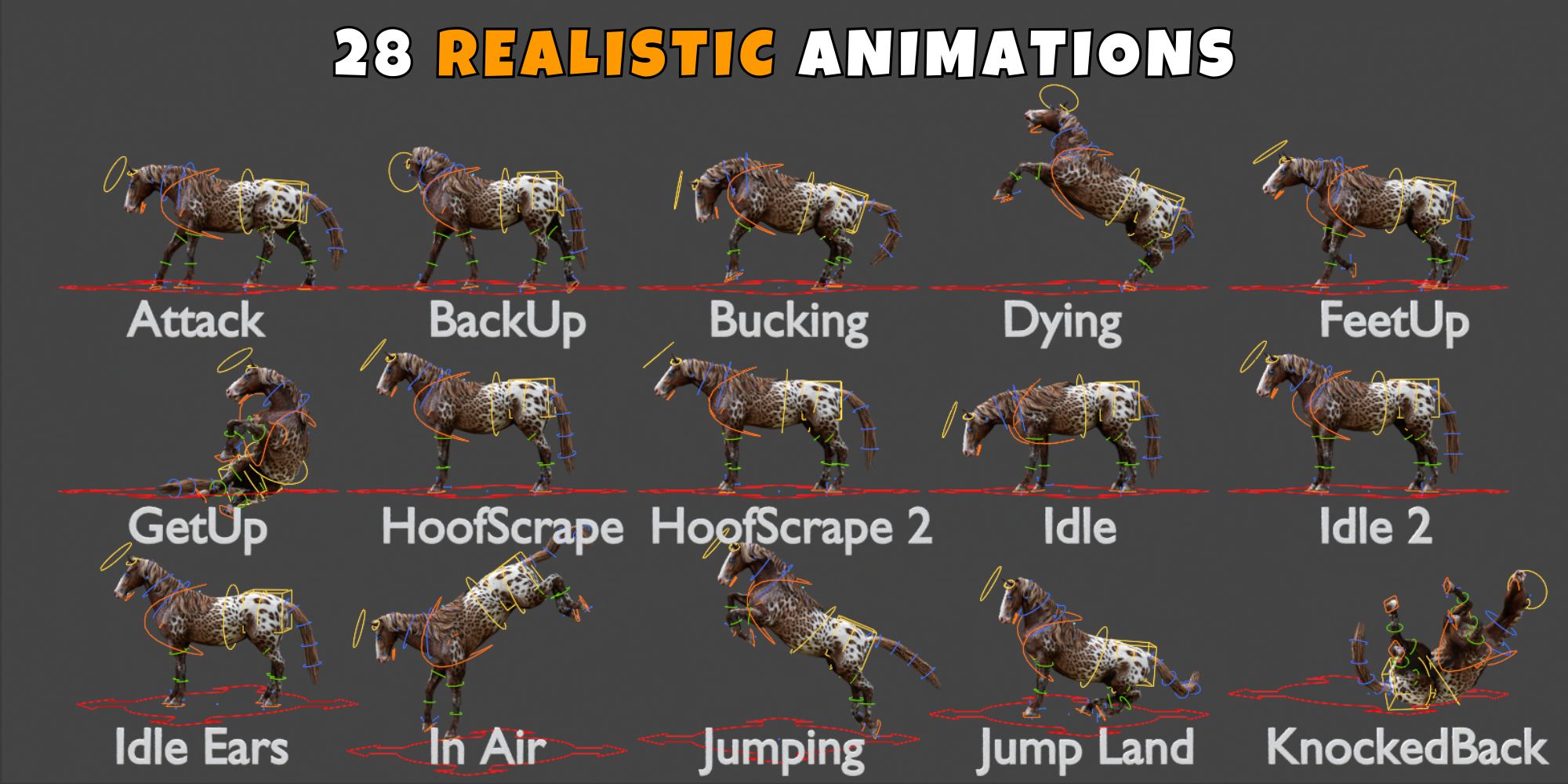
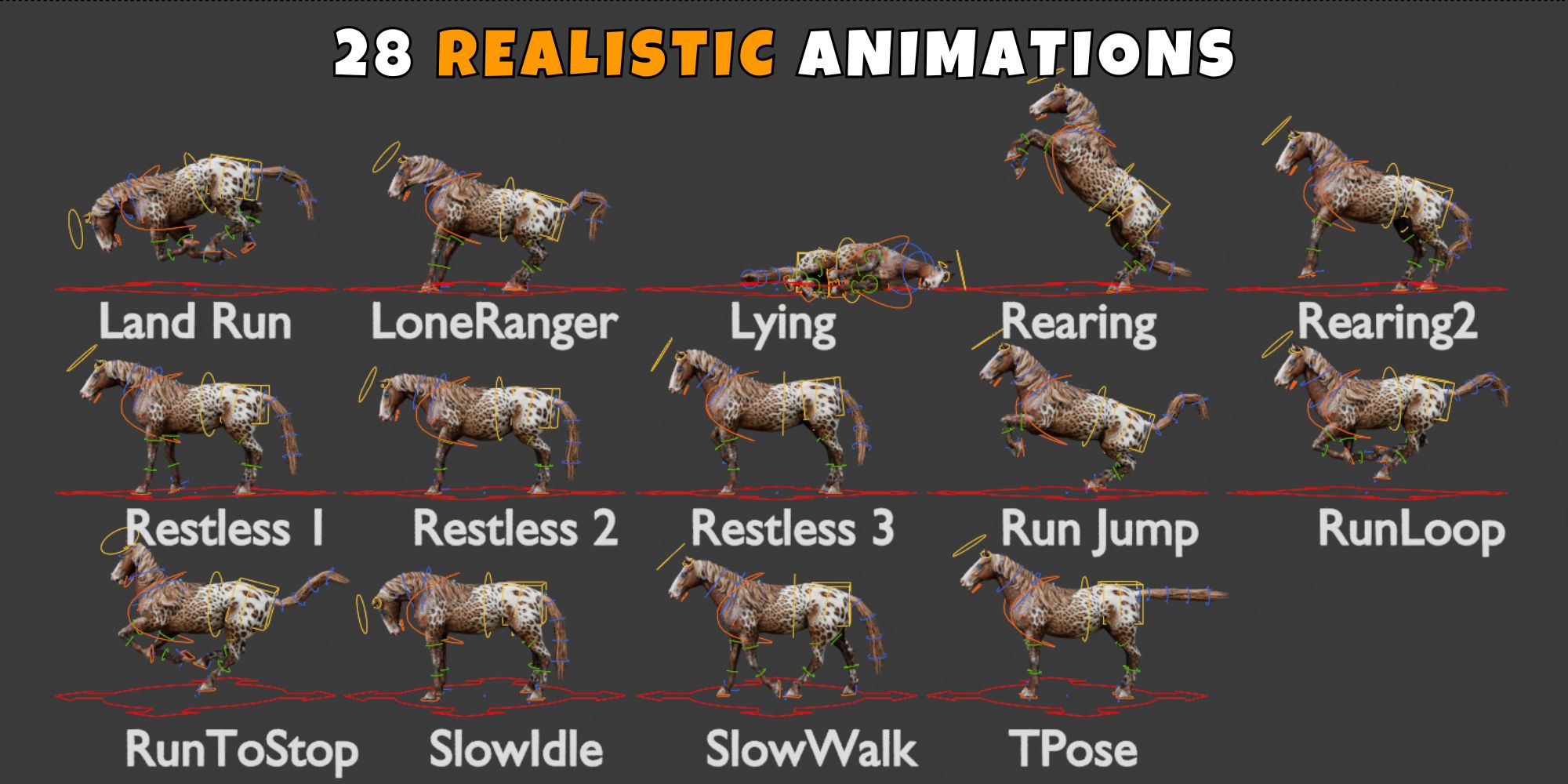
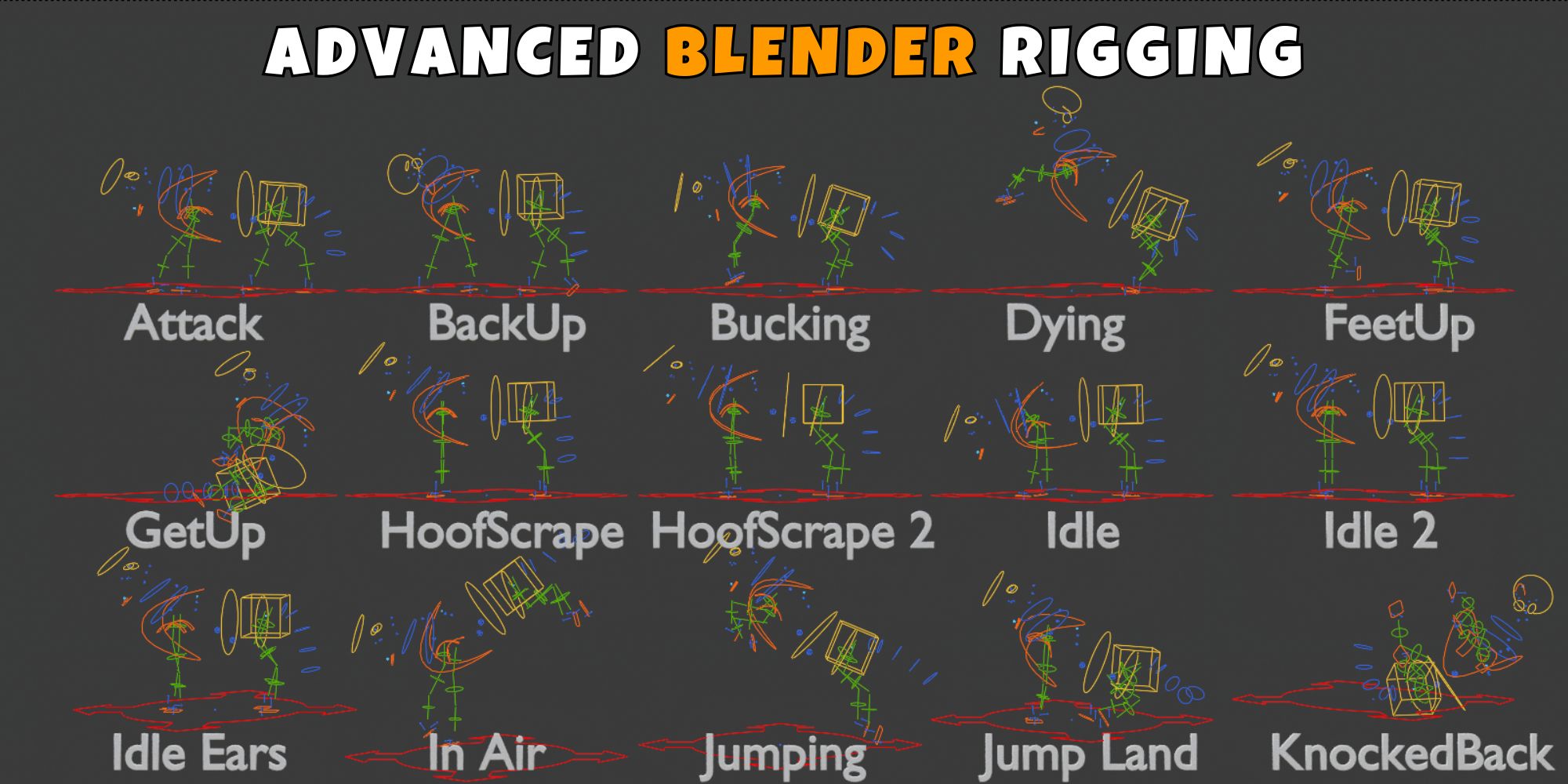
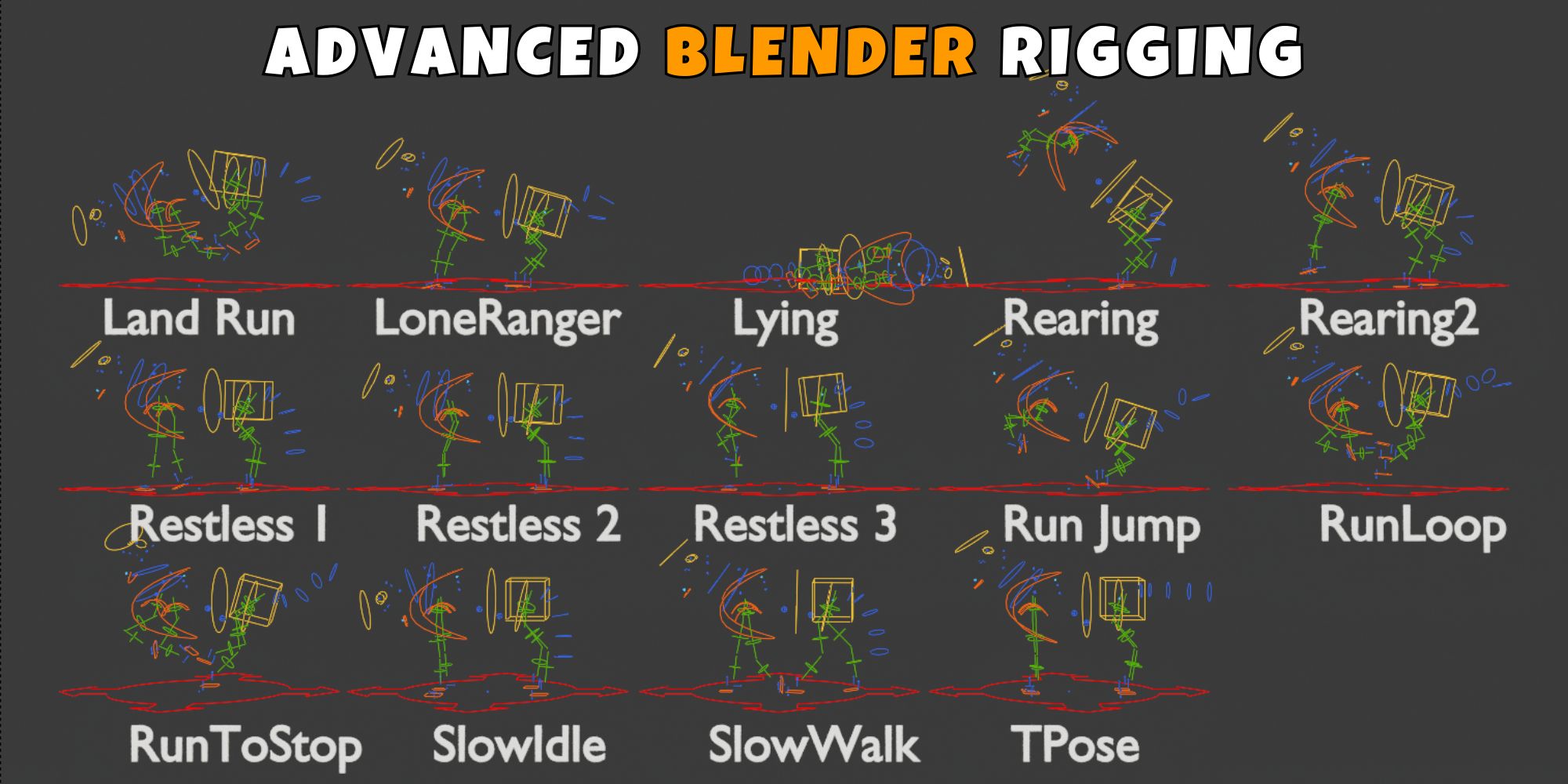
Horse Rigged And Animated 3D Model includes 28 Realistic Animations. Horse Rigged And Animated 3D Model Character has been fully Blender Advanced rigged. Horse Rigged And Animated 3D Model character has its own animations which is based on realistic methodology. You can easily append this character into your scene. This model can also be used for your games. This Horse Rigged And Animated 3D Model animation pack is simple to use and will save a lot of time. By following a few simple steps, you may use this character to create any scene or movie without wasting time on modelling, rigging, and animations.
Advanced Blender Rigging:
Realistic Horse Rigged and Animated 3D Model Animations:
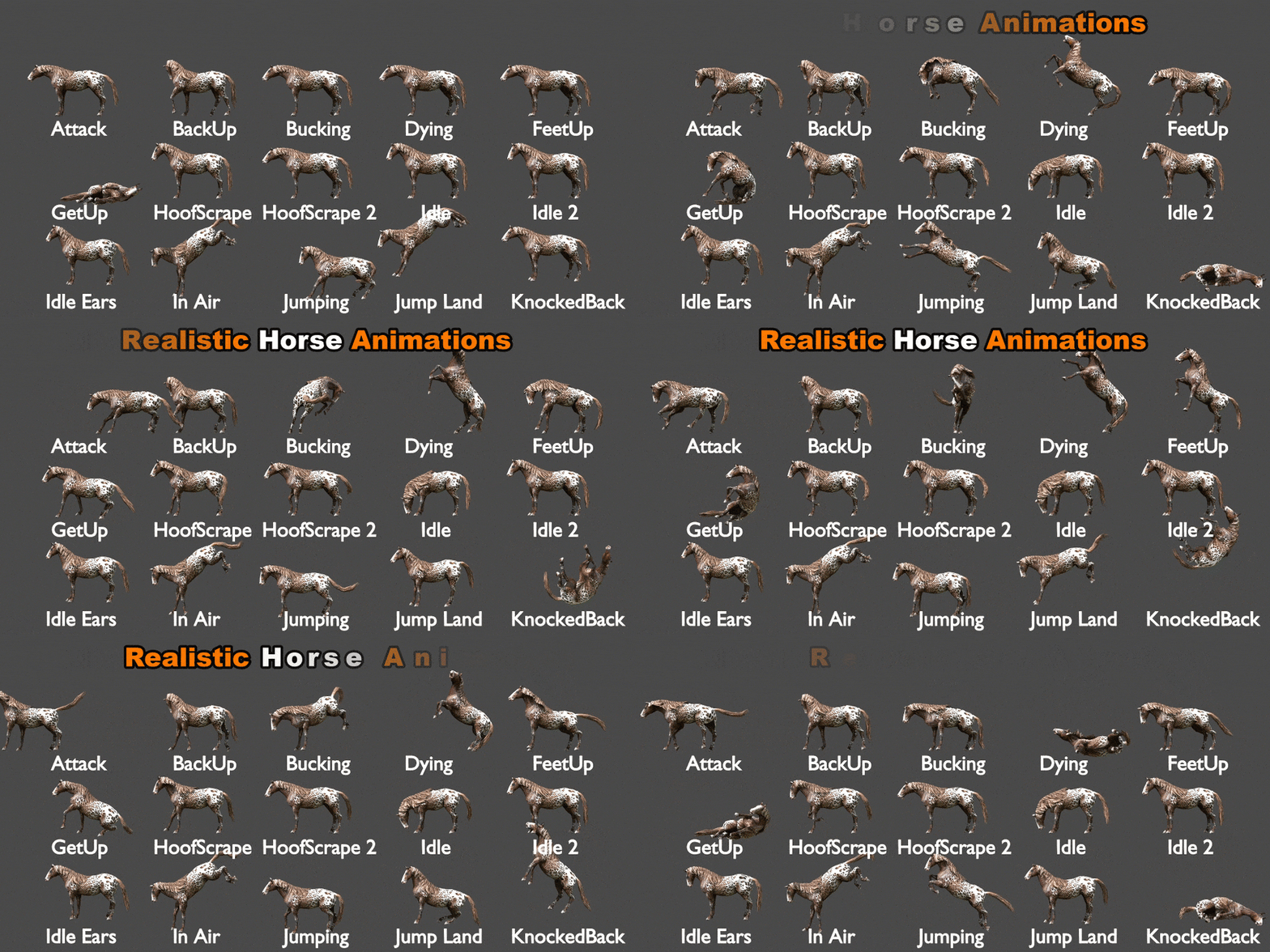
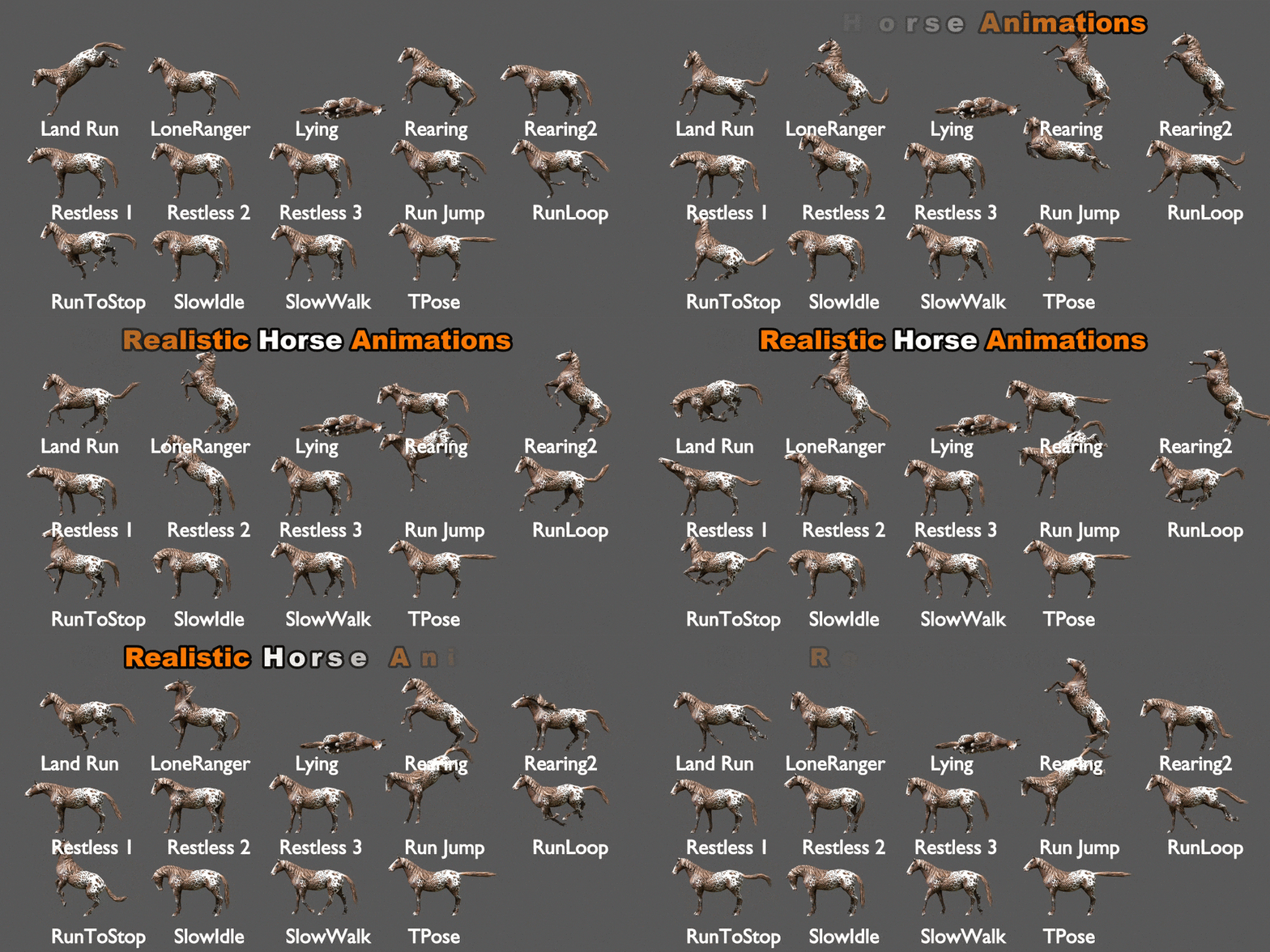
Horse Rigged and Animated 3D Model Animations List:_
- Attack
- BackUp
- Bucking
- Dying
- FeetUp
- GetUp
- Hoof scrape 1
- Hoof Scrape 2
- Idle 1
- Idle 2
- Idle Ears
- In Air
- Jumping
- Jump Land
- Knocked Back
- Land Run
- Lone Ranger
- Lying
- Rearing
- Rearing 2
- Restless 1
- Restless 2
- Restless 3
- Run Jump
- Run Loop
- Run to Stop
- Slow Idle
- Slow Walk
- T Pose
Quick Start: Bring Your Character to Life!
Getting your new animated model into your project is a breeze. Follow these 3 simple steps to get rendering in seconds:
Import the Collection
For a perfect setup with all meshes, armatures, and materials intact, Append the Collection instead of individual objects.
- In your new scene, go to File > Append.
- Locate the
Horse Rigged And Animated 3D Model.blendfile. - Open the Collection folder.
- Select “Horse rigged and animated 3D Model_Main” and click Append.
Bring in the Animations
To ensure every custom movement is available in your new project:
- Go to File > Append again (same file).
- This time, open the Action folder.
- Select all listed animations (e.g., Walk, Attack, Idle) and click Append.
Activate & Play!
Now, simply “plug in” the animations to the rig:
- Select the Armature (the bones) in your 3D view.
- Switch your bottom window to the Action Editor (found inside the Dope Sheet).
- Click the Browse Action icon (the small picture button).


Reviews
There are no reviews yet.